Question: Mike, we have changed the location of our Paperless Office for Sage 100 to a new server. We are having trouble finding out how to change the Paperless Office PDF’s Location. Can you help?
Answer: There are steps and several mini steps to change the PDF location in Sage 100 Paperless Office. Here’s how…
NOTE: We advise that you consult with your certified Sage 100 ERP consultant before making any changes to your Sage 100 ERP system. If you don’t currently work with a Sage 100 consultant, contact us and we are available to help.
STEP 1 – Change the path for future reports:
• Open Paperless Office, Setup, Journal and Register Maintenance
• Click Report Entries (Flashlight button) Select the setting desired to change from the Report List and click Select.
Note: This is a list of previously configured settings.
• In the PDF Directory field, browse to the new location for PDF storage
• Click Accept.
• Repeat for each Maintenance task and Company Code, if desired
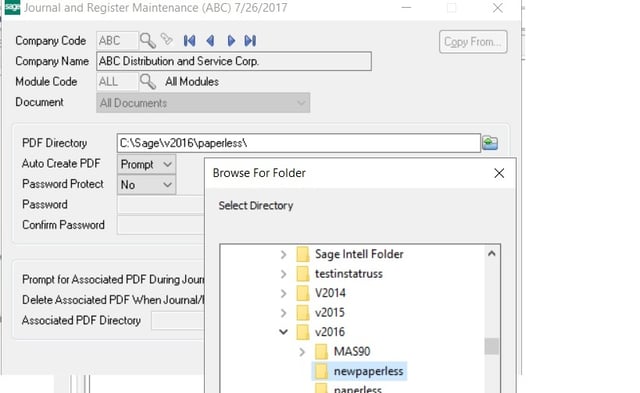
STEP 2 – Use Link Maintenance to Re-Link or Move Reports
• Open Library Master, Utilities, Link Maintenance
• Select the Link Type to change (Forms, Journals/Registers, Reports)
• Select a Company Code and Module code or select ALL for each
• Click Refresh and documents matching your criteria are displayed
NOTE: This interface can have a long loading time for high document counts. It will take about 30 seconds per 10,000 records
NOTE: This interface can handle a maximum of 100,000 records. If there are more than 100,000 records for one time, the Viewer will have to be used to re-link the records using the date filter which Link Maintenance does not have. It is recommended that PDF’s are purged regularly as well if this number exceeds 75,000 records (Paperless Office, Utilities, Purge PDF Documents)
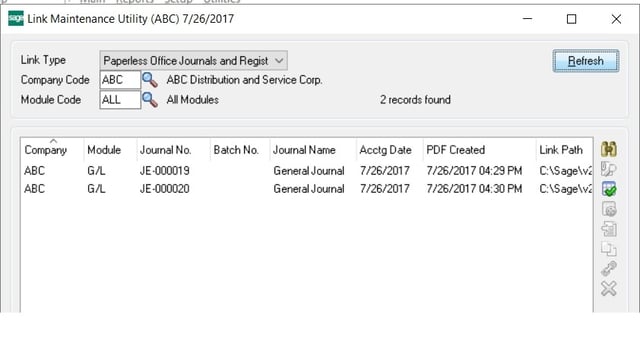
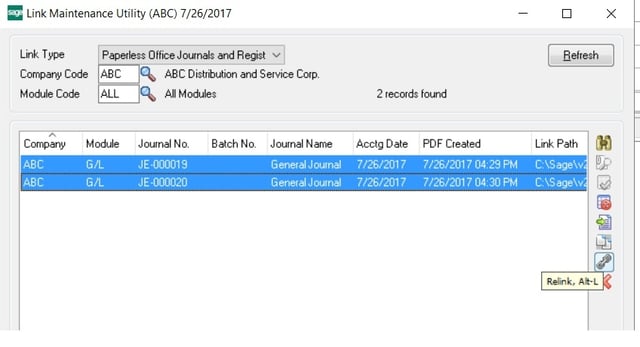
• Hold the Shift or CTRL key while clicking so select multiple records
• Click the Relink button to change the path, The Relink Button looks like a chain.
• A “Path” box appears – type the new path for the pdf documents and click Accept
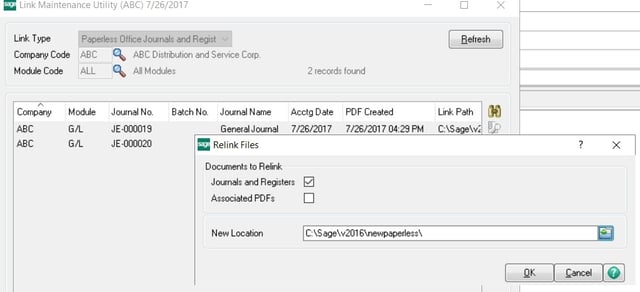
• A message will appear if the PDF documents are not located in the new folder. You can still accept and Re-link if the PDF’s are not there.
NOTE: The PDF’s themselves can be moved before or after the Re-link process. You can move the them with Windows Copy and Paste, Once the path can see the PDF in the directory, it will go from Red to Black to
NOTE: If PDF’s are reachable (Not Broken Links), you can use the “Move” button to move the PDF and change the Link simultaneously. If this option if chosen, make a backup of the PDF documents themselves prior to doing the move using Link Maintenance.
STEP 3: Move Reports Using the Viewer
(To do this, there must at least one entry in Black that can be located. If all paths are in Red, the move button will be unavailable):
• Open Paperless Office, Main, Report Viewer
• Select Company and Module Codes or ALL. The reports will display in the list area
• Select the reports to be moved
Note: Press CTRL or SHIFT when clicking to select multiple reports.
• Click the Move button (yellow bar with the right arrow).
• Browse to New Location then Click OK
• Click Yes
• A dialog box opens indicating the number of PDF documents moved. Click OK
NOTE: This method should only be used if Link Maintenance is not an option due to large datasets.
Written by Mike Renner, Partner at WAC Solution Partners – Greater Los Angeles
Specialties
Sage 100 ERP (formerly Sage MAS90 / MAS200), Abila MIP Fund Accounting™, Acumatica, QuickBooks Pro Advisor
Tags: Sage 100 Consultant, Sage 100 Accounts Receivable
Please note: This is a repost of a blog that was written for ERPVAR.com, the original blog can be found below.
ORIGINAL ERPVAR.com blog


Leave a Reply