As a Sage 100 (formally MAS90) Certified Consultant I am asked by our customers every year about which forms to use for W2’s and 1099’s and printing of those forms. This blog is a simple review of the forms and the steps required, so it will not be so difficult determine the steps each year.
For the W2 and 1099 forms, you will need the 4 perforated forms for the recipients as well as the other required forms from the IRS. There is a very good knowledgebase article at Sage’s support website that is linked below that will tell you exactly what forms you need to purchase.
LINK to Sage KB Article 52202
Printing of W2’s and 1099’s:
Sage 100 current versions uses Aatrix a service that is employed by Sage and as long as you have a current Sage support/maintenance plan in place the service is available.
For W2 and W3 printing please follow the simple steps below:
Modules>Payroll>Period End>Federal Efiling and Reporting
Once the form comes up click on the W2/W3 form and click Accept, if the current year W2/W3 report is not there, it means that you will need to do the Automatic Update on the form that comes up next to get the correct forms to load. Aatix updates the forms on a regular basis so if there are new forms you will want to do the Automatic Update.
To complete the W2 printing you will want to follow the steps on the Aatrix form to completion. It is a very simple step by step process mostly just clicking the Next Button and printing the forms.
For 1099 and 1096 printing we have include more detailed instructions below:
Modules>Accounts Payable>Reports>Form 1099 eFiling and Reporting
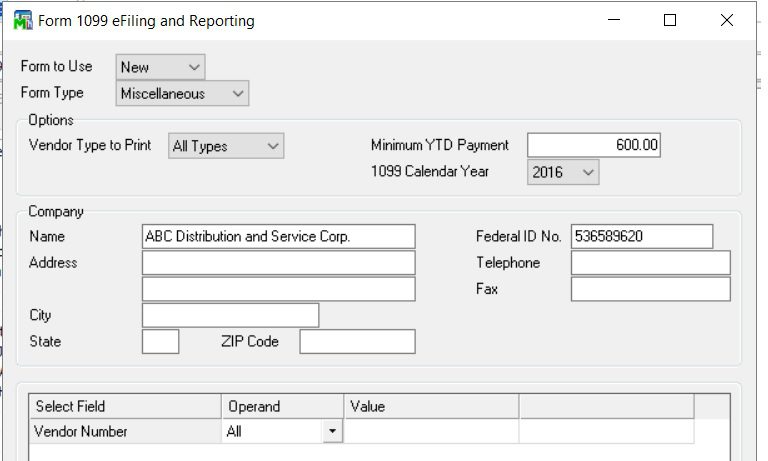
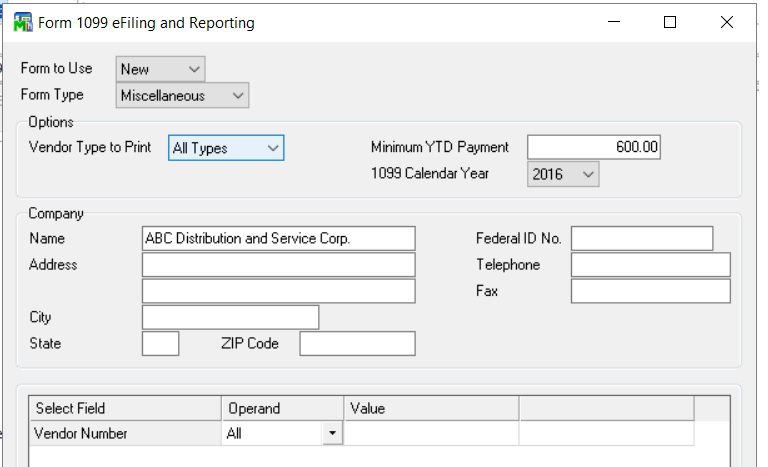
On the 1099 form set the Form type as Miscellaneous, the correct year and Minimum YTD amount to $600. Then click Accept. If there are new forms you will want to click the Automatic Update button on the next screen.
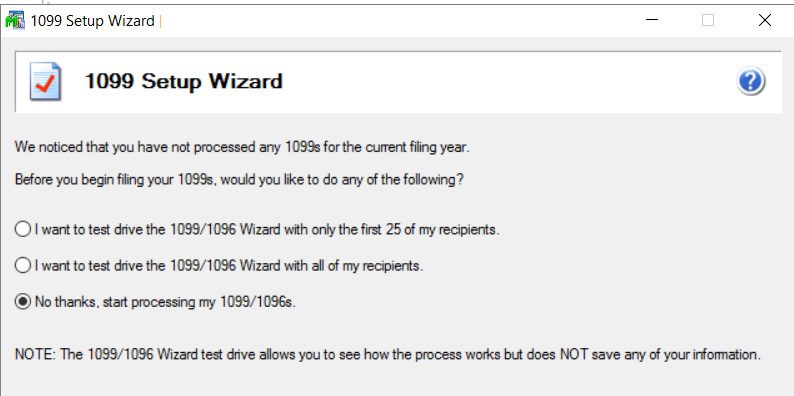
On the 1099 Setup Wizard you can choose the test drive for print the 1099’s. First time through would suggest you test drive, and do some sample prints to plain paper. Click Next and there will be a series of question to answer in the Wizard, usually the default answers will be sufficient.
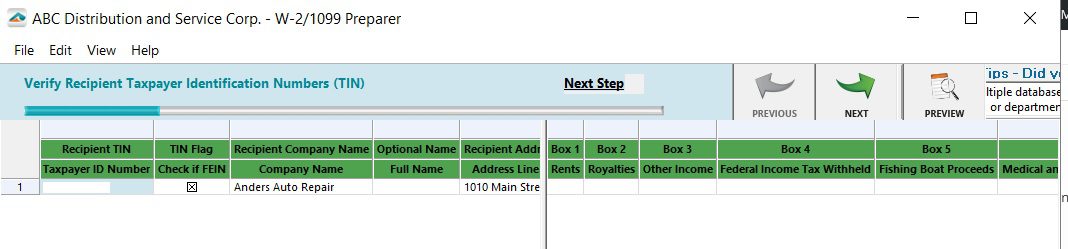
The screen will show Verify Recipient Verification info in spreadsheet format. You will click the green next buttons verify and the information, if there are errors in the data Aatrix will error and require correction before moving forward. Things like you do no have a Tax ID number and it will be highlighted in red.
You should continue to click the green next button. If you want to enroll in Aatrix’s eFiling you can do that, click next the get past the Ads.
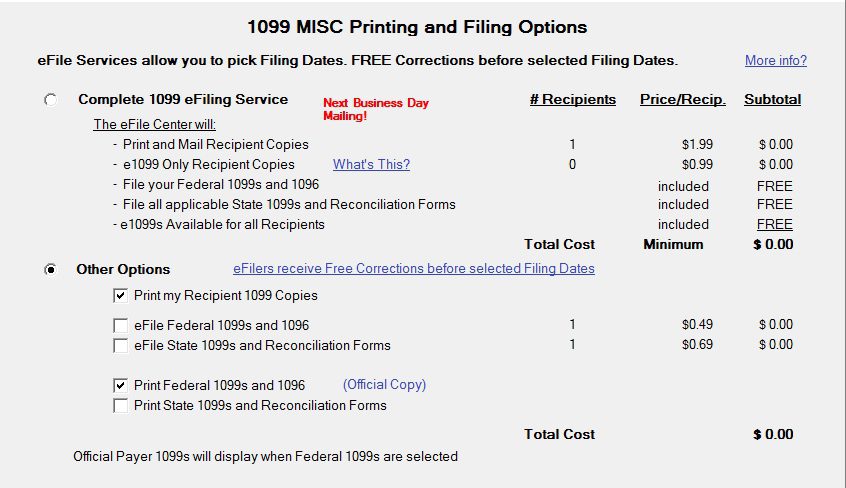
At the Print Options page select Other Options and select the print the 1099’s and 1096. Then click next four times.
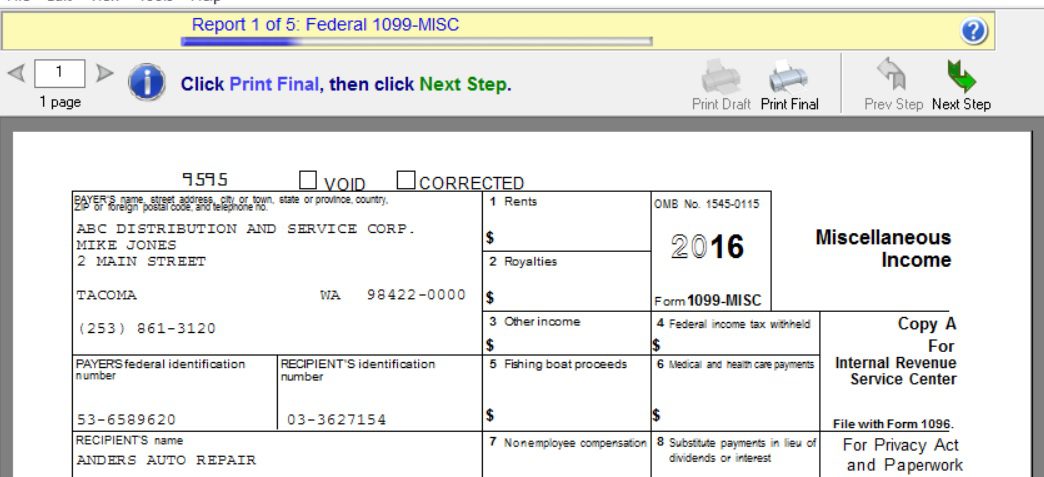
Aatix will preview the 1099’s on the screen, you can click print final, Aatix will instruct you with the type of paper to insert, print and then click next step. The system will repeat this process until you are done printing the 1099’s. You are done at this point.
If you have questions please contact us at www.caserv.com or 760-618-1395. Please stay tuned for more helpful Sage 100 ERP tips!
Expertise With Local Roots & National Reach