Sage 100 Question: Mike, how can I setup Electronic Delivery Invoicing in Sage 100 for Accounts Receivable.
Sage 100 Answer: As a seasoned Sage 100 Certified Consultant this question is one that will delivery much efficiency to your organization. You will be able to eliminate paper printing time, the cost of paper and postage and make things very simple for you customers.
As always, if you are unclear about any of these instructions or have concerns on how this will impact your Sage 100 system, it is recommended that you contact your Sage 100 consultant. If you don’t have access to one, we are here to help. Please see our blog for more helpful Sage 100 tips.
9 Steps to Set Up Sage 100 Electronic Delivery of Accounts Receivable Invoices
Step 1 – In order to “go paperless” it’s necessary to first ask your customers if they would like to start receiving electronic invoices PDF’s? It’s just a matter of sending an email to get a simple agreement. Ask your customers to verify what email the invoices should be addressed to and you are ready to get started. A simple list can be obtained including the customer number. This list can be imported into Sage 100 with Visual Integrator, or they can be manually entered as well if you would like.
Step 2 – The example shown is for Accounts Receivable, but this method can be used for any of the Sage 100 forms.
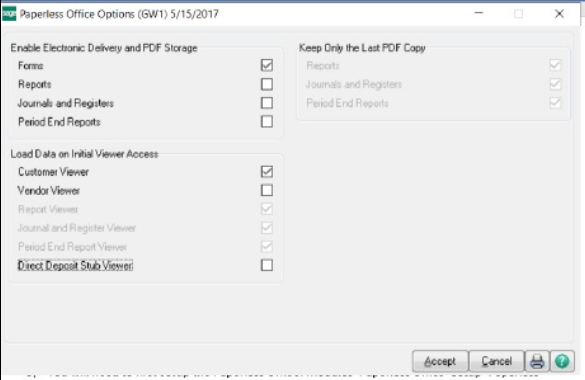
Step 3 – You will need to first setup the Paperless Office: Modules>Paperless Office>Setup>Paperless Office Options and make sure the Forms and Customer Viewer buttons are checked.
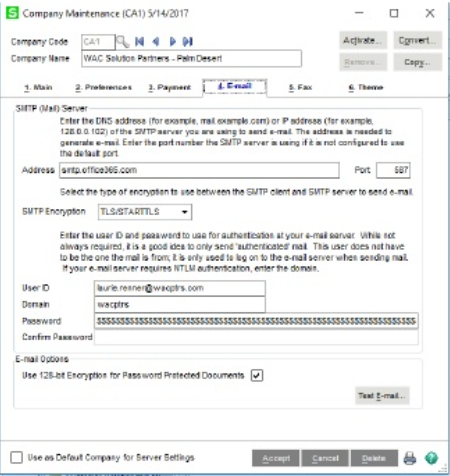
Step 4 – You will need to setup E-mail preferences for Company Maintenance, Modules>Library Master>Company Maintenance, select your Sage 100 Company and then tab 4, E-mail. Select the STMP, Port, User name, Domain and Password. This will be for your email system. The example is for an Office 365 email system. Once setup you can click the Test Email button to make sure it all works.
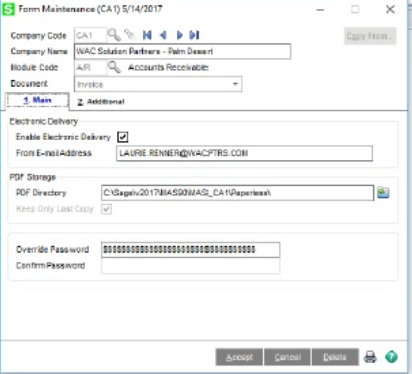
Step 5 – Setup the Form Maintenance for Accounts Receivable invoice: Modules>Paperless Office>Setup>Form Maintenance. Enable Electronic Delivery, add the From Email address, password and set the location of the PDF Directory.
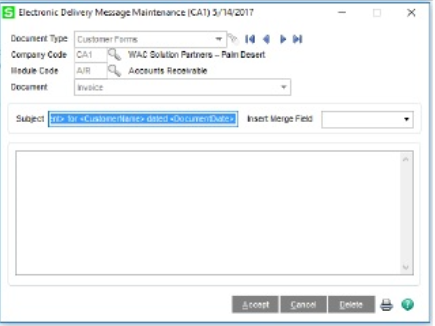
Step 6 – Setup the Electronic Delivery Message Maintenance: Modules>Paperless Office>Setup>Electronic Delivery Message Maintenance. And set it up for Accounts Receivable Invoice.
Step 7 – For each customer that will be receiving Electronic Invoices you will need that add the Email to Customer Maintenance: Modules>Accounts Receivable>Customer Maintenance:
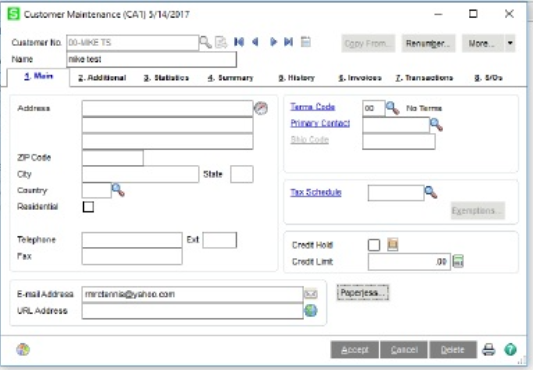
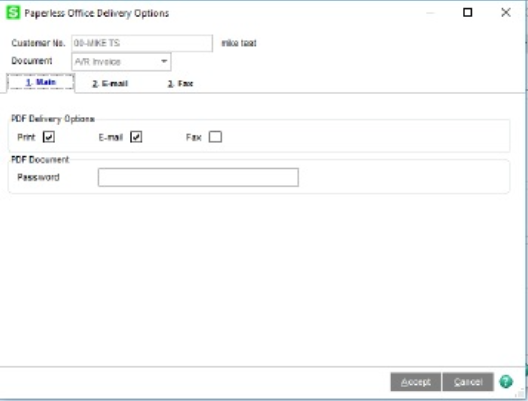
Step 8 – From inside of Customer Maintenance you will need to click on the Paperless button, select the Document to be A/R Invoice and on the Main Tab click to Print PDF and E-mail.
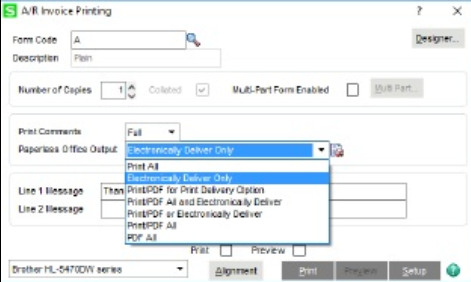
Step 9 – Now when you select to print and Accounts Receivable invoice you will have options to Electronically Delivery Only, Print to PDF and Electronically Deliver and Print to PDF or Electronically Deliver. This will give you many options for printing. At this point you can test a couple sample invoices to may sure it all works.
Written by Mike Renner, Partner at WAC Solution Partners – Greater Los Angeles
Specialties
Sage 100 ERP (formerly Sage MAS90 / MAS200), Abila MIP Fund Accounting™, Acumatica, QuickBooks Pro Advisor
Tags: Sage 100 Consultant, Sage 100 Accounts Receivable
Please note: This is a repost of a blog that was written for ERPVAR.com, the original blog can be found below.
ORIGINAL ERPVAR.com blog


